
Getting started
System requirements, download verification, SmartScreen guidance, first launch, port configuration, and Demo Meet tour.
Get LaneCue running on your Windows pool-deck laptop in a few minutes.
System requirements #
- Operating system: Windows 10 or Windows 11 (64-bit / x64).
- Browser: Google Chrome or Microsoft Edge (for the Operator UI).
- Broadcast software: OBS Studio 28 or newer (includes built-in
obs-websocketv5). - Network: Internet is required only for initial license activation, periodic lease check-ins, software updates, and optional BYOK Gemini AI commentary. Meet-day overlays and CTS timing run 100% locally.
Download and verify #
- Download
LaneCue.exefrom the Download page. - Optional: verify the SHA-256 checksum shown on the Download page in PowerShell:
Get-FileHash .\LaneCue.exe -Algorithm SHA256
Windows SmartScreen guidance #
Because LaneCue.exe is distributed directly, Windows Defender SmartScreen may display a "Windows protected your PC" prompt on first launch:
- Click More info.
- Confirm the file name is
LaneCue.exeand click Run anyway.
First launch and port configuration #
Double-click LaneCue.exe to start the local server. By default, LaneCue listens on port 4780 and opens http://localhost:4780 in your default browser.
On first launch of the packaged executable, LaneCue creates a starter lanecue.config.json file next to LaneCue.exe and writes diagnostic logs to lanecue.log in the same data/app folder.
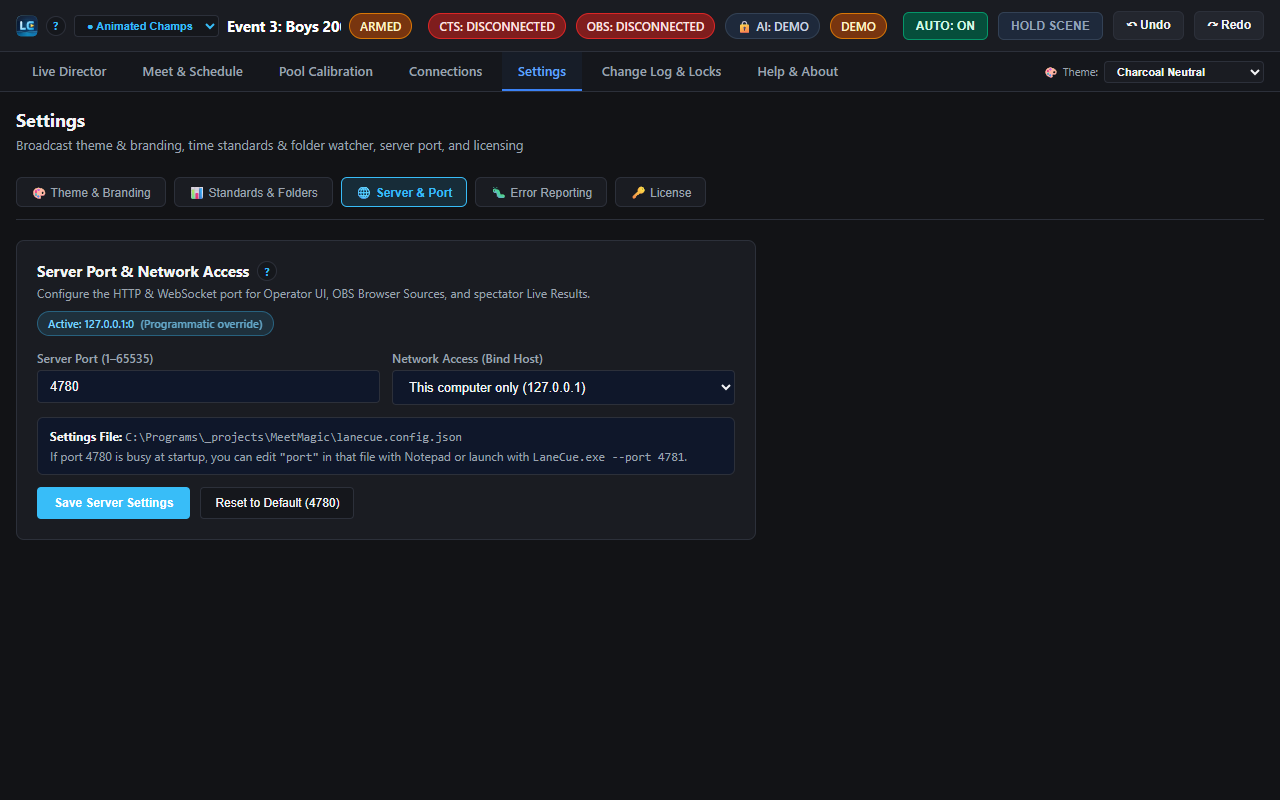
If port 4780 is already in use (EADDRINUSE), you can change it in Settings → 🌐 Server & Port, edit lanecue.config.json, set LANECUE_PORT, or pass --port <number> on the command line. Remember to restart LaneCue and update your OBS Browser Source URLs if you change the port.
CLI flags and precedence #
LaneCue Broadcast Server

Options:
  -p, --port <1-65535>   HTTP & WebSocket server port (default: 4780)
  --host <address>       Bind address (0.0.0.0 for LAN, 127.0.0.1 for local only)
  -c, --config <path>    Path to lanecue.config.json settings file
  --no-open              Do not automatically open the Operator UI in a browser
  -h, --help             Show this help message and exit

Settings file:
  Example: { "port": 4780, "host": "0.0.0.0", "openBrowser": true }

Environment variables:
  LANECUE_PORT           Overrides the port from lanecue.config.json
  LANECUE_HOST           Overrides the bind host from lanecue.config.json
  LANECUE_CONFIG         Custom path to lanecue.config.json
  PORT / HOST            Legacy fallback variables (used if no higher-priority setting)

Precedence (highest to lowest):
  CLI flag (--port) > LANECUE_PORT > lanecue.config.json > legacy PORT > 4780
Demo Meet tour #
LaneCue includes a built-in Demo Meet so you can test overlays, calibration, and rehearsal mode without importing any files:
- Open the Meet & Schedule tab.
- Click 🎬 Load Demo Meet.
- Switch to Live Director to step through heats or start a simulated race.
Software updates and offline Help #
LaneCue checks for updates on startup and every 6 hours, showing a non-intrusive banner when a new version is ready. Updates are SHA-256 verified before applying and never restart while a race is RUNNING or FINISHING.
Press F1 anywhere in the Operator UI (or click Help & About) to open this offline manual in a new tab.