
OBS setup
Connect obs-websocket v5, add 1920×1080 Browser Sources, map scene roles, configure overlay presets and stacking order, and enable Replay Buffer.
LaneCue drives OBS Studio automatically over obs-websocket v5 so you do not have to click scenes in OBS during a meet.
Enable obs-websocket v5 in OBS Studio #
- Open OBS Studio (version 28 or newer).
- Go to Tools → WebSocket Server Settings.
- Check Enable WebSocket Server (default port
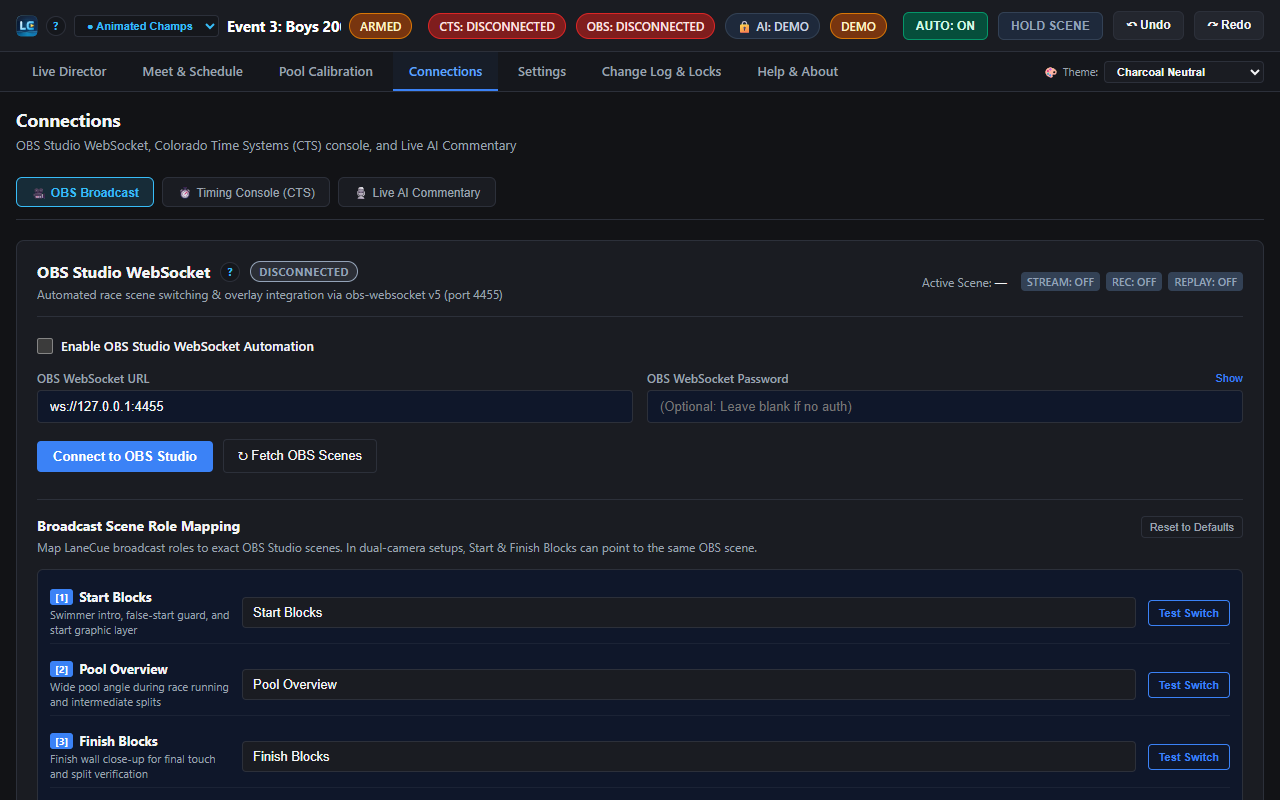
4455) and copy or set your password. - In LaneCue, open Connections → 🎥 OBS Broadcast, enter
ws://127.0.0.1:4455and your password, then click Test & Save.
Add Browser Sources (1920×1080) #
Choose one of two layouts in OBS:
- Composite mode (simplest): Add a single Browser Source pointing to
http://localhost:4780/overlay/programat 1920×1080, 60 fps, across your scenes. LaneCue turns individual layers on and off automatically per scene. - Per-scene mode: Add dedicated overlay URLs (such as
/overlay/start,/overlay/scoreboard,/overlay/results,/overlay/diving) to specific OBS scenes.
Important
If you change LaneCue's port in Settings → 🌐 Server & Port, update your OBS Browser Source URLs to match the new port.
Scene-role mapping and layer presets #
Map your OBS scene names to LaneCue scene roles (START_BLOCKS, POOL_OVERVIEW, FINISH_BLOCKS, RESULTS_FULL, NEXT_UP, BREAK, DIVING, REPLAY) in Connections → 🎥 OBS Broadcast.
- Per-scene overlay presets: Control which layers are visible on each scene role (including
REPLAY). - Composite layer stacking order: Reorder
/overlay/programlayers front-to-back using drag-and-drop or the↑/↓buttons, or click Reset Order to restore defaults.
Replay Buffer and recording #
- Instant Replay: Enable OBS Replay Buffer in OBS Settings → Output. When you trigger Instant Replay in LaneCue, it saves the buffer and switches to your
REPLAYscene. - YouTube Chapters: Enable OBS Recording during the meet so LaneCue can export timestamped YouTube chapter markers for every heat afterward.
Audio isolation #
OBS Browser Sources connect as ?client=overlay and never receive AI commentary audio, preventing double-audio or feedback on stream.